
How to design a custom Tesla wrap
Put your partner, your dog, your team or your own artwork on your Tesla. A custom wrap shows on the car’s screen and in the Tesla app through Paint Shop, and you can make one on your phone in about five minutes.
Last updated 23 October 2026
1. Pick your exact car
Open the TeslaSkins editor and choose your model and year. Each Tesla has its own Paint Shop template, so a design for the 2025+ Model Y Juniper won’t fit the 2020–2024 Model Y. Not sure which you have? See which template is my car.
2. Add your photos
Tap a panel on the car, such as the bonnet, roof or a door, and choose a photo. Drag it with your finger to move it, and use the sliders to zoom and turn it. The 3D car updates as you go, so you can see exactly how it will look.
Want one photo across the whole car? Choose Entire vehicle and the picture is laid over every panel at once.
3. Choose a base colour
Pick the colour for everything your photos don’t cover. For more control, switch to the Advanced editor to add text, shapes, gradients, patterns and stickers on separate layers.
4. Download and install it
Press Finish to download your wrap as a PNG that meets Tesla’s rules. Then add it with the Tesla app (Creations → Wrap → Upload) or a USB drive, and apply it in Toybox → Paint Shop → Wraps. Our install guide has every step.
Designing is free. Downloading your finished custom design is a one-off £4.99, or the local equivalent shown before you pay.
5. Ideas for a custom Tesla wrap
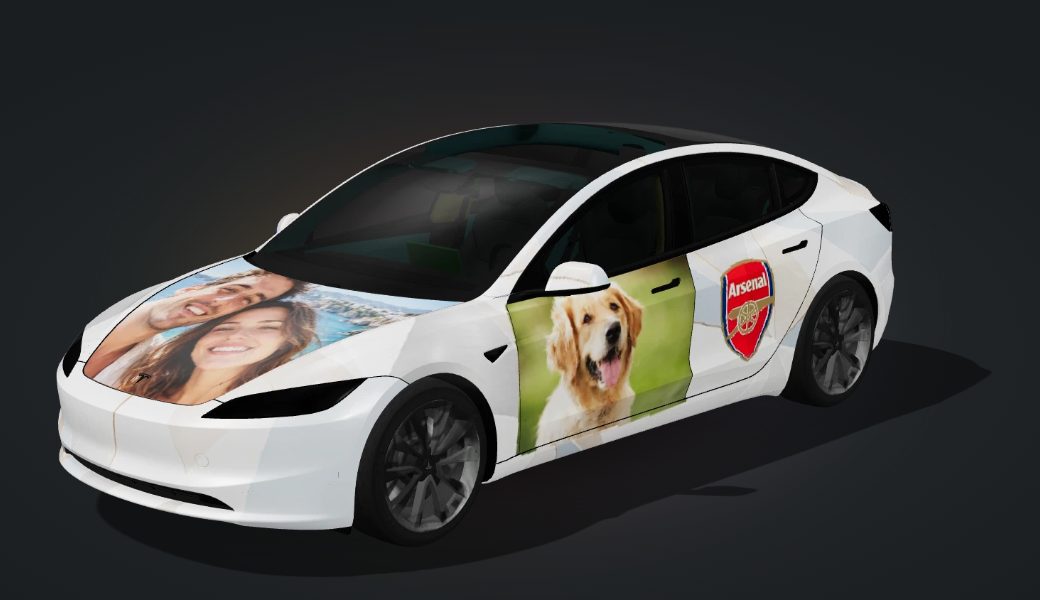
- Family and pets: a holiday selfie on the bonnet, the dog on the doors.
- Your team: club colours with the badge on the side. See our football wraps for inspiration.
- Racing liveries: stripes, numbers and sponsor-style logos.
- Seasonal: Halloween, Christmas or birthday wraps you swap in for the day.
- Art and patterns: gradients, camo or repeating patterns.
Prefer something ready-made? Download a free Tesla wrap and change it later.
6. Tips for a great result
- Use sharp, well-lit photos. Faces look best on large flat panels like the bonnet and doors.
- Keep important parts away from panel edges and door handles, where the image wraps around curves.
- Check the car from several angles in the 3D preview before you download.
- Strong colours read better on the car’s screen than very pale ones.
7. Questions
Can I put my own photo on my Tesla?
Yes, in Paint Shop. It shows on the car’s screen and in the Tesla app, not on the real paint.
Can I design a Tesla wrap on my phone?
Yes. The simple editor is built for phones: pick your car, add photos with your finger and see the result in 3D.
Which Teslas can I design for?
The editor supports Model 3 (2017–2023 and 2024+ Highland) and Model Y (2020–2024 and 2025+ Juniper). Templates for other models are on our templates page.
What is Tesla Paint Shop?
It’s the Toybox feature that restyles your car on screen. Read our Tesla Paint Shop guide.