
Tesla wrap templates for Paint Shop
Every Tesla Paint Shop wrap starts from Tesla’s official template for that exact car. Here’s the template for each model and generation, what the sizes are, and the quickest way to design on one.
Last updated 23 October 2026
1. Templates by model
Each template is a PNG that shows where every body panel sits. Download it to design in your own app, or open it in the TeslaSkins editor to design with a live 3D preview.
| Car | Template | Design online |
|---|---|---|
| Model 3 · 2024+ Highland | Download PNG | Open in editor |
| Model 3 · 2024+ Highland Performance | Download PNG | Open in editor |
| Model 3 · 2017–2023 | Download PNG | Open in editor |
| Model Y · 2025+ Juniper Standard | Download PNG | Open in editor |
| Model Y · 2025+ Juniper Premium | Download PNG | Open in editor |
| Model Y · 2025+ Juniper Performance | Download PNG | Open in editor |
| Model Y · 2020–2024 | Download PNG | Open in editor |
| Model Y L | Download PNG | Coming soon |
| Model S · 2021+ | Download PNG | Coming soon |
| Model S · 2025+ Plaid | Download PNG | Coming soon |
| Model X · 2021+ | Download PNG | Coming soon |
| Cybertruck | Download PNG | Coming soon |
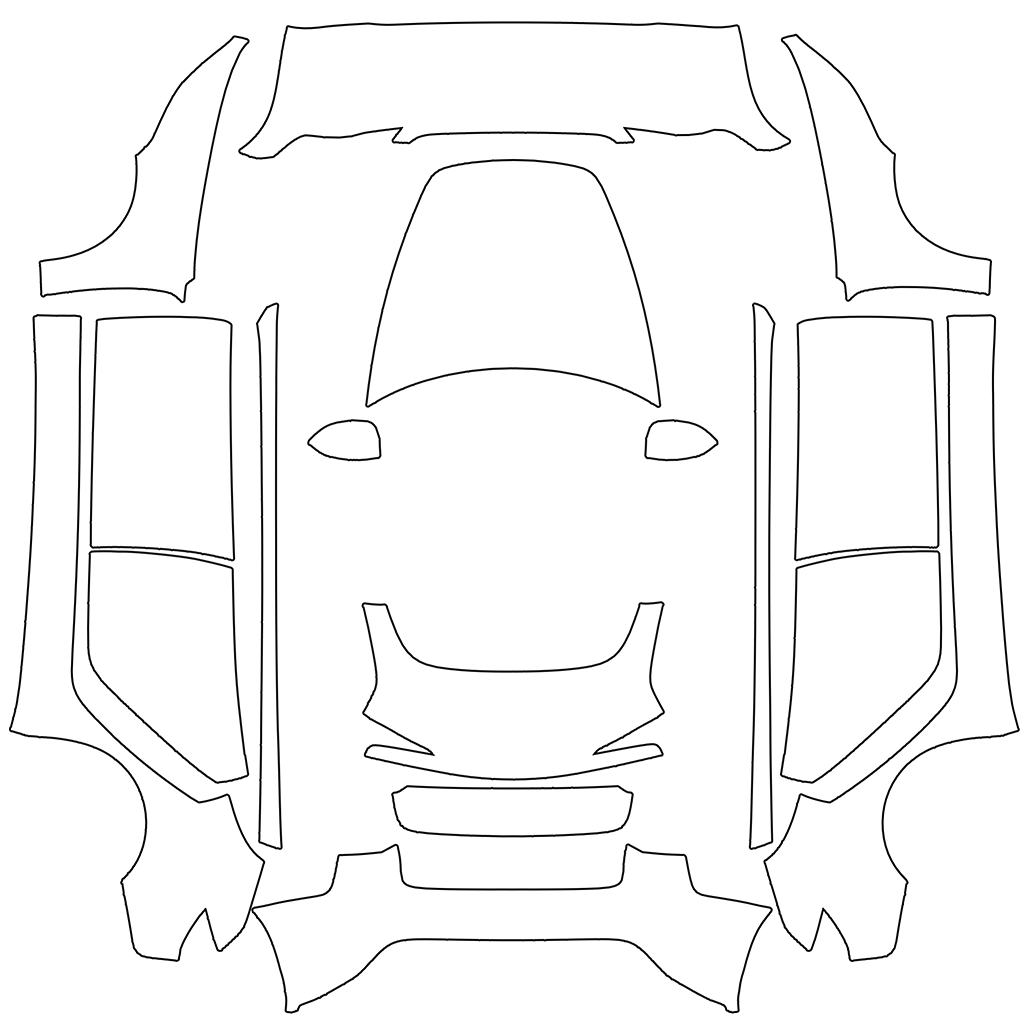
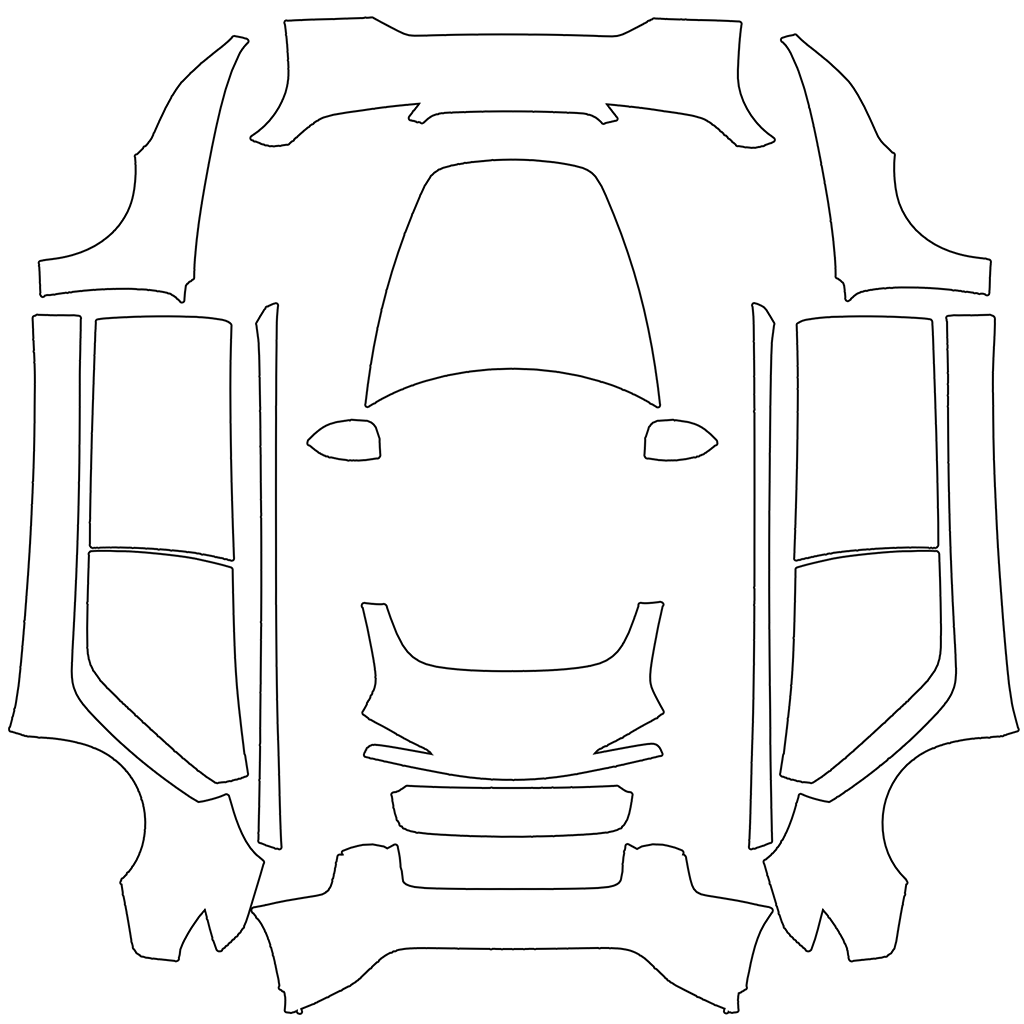
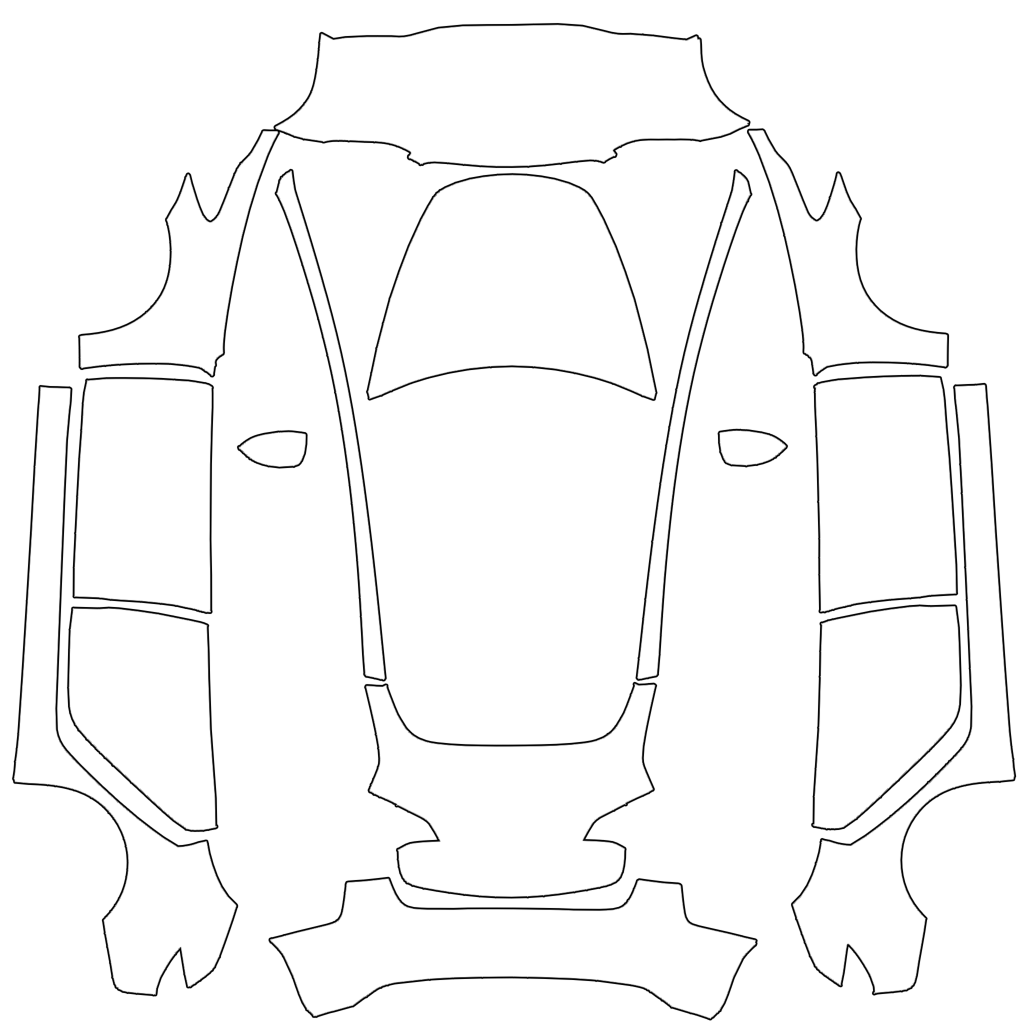
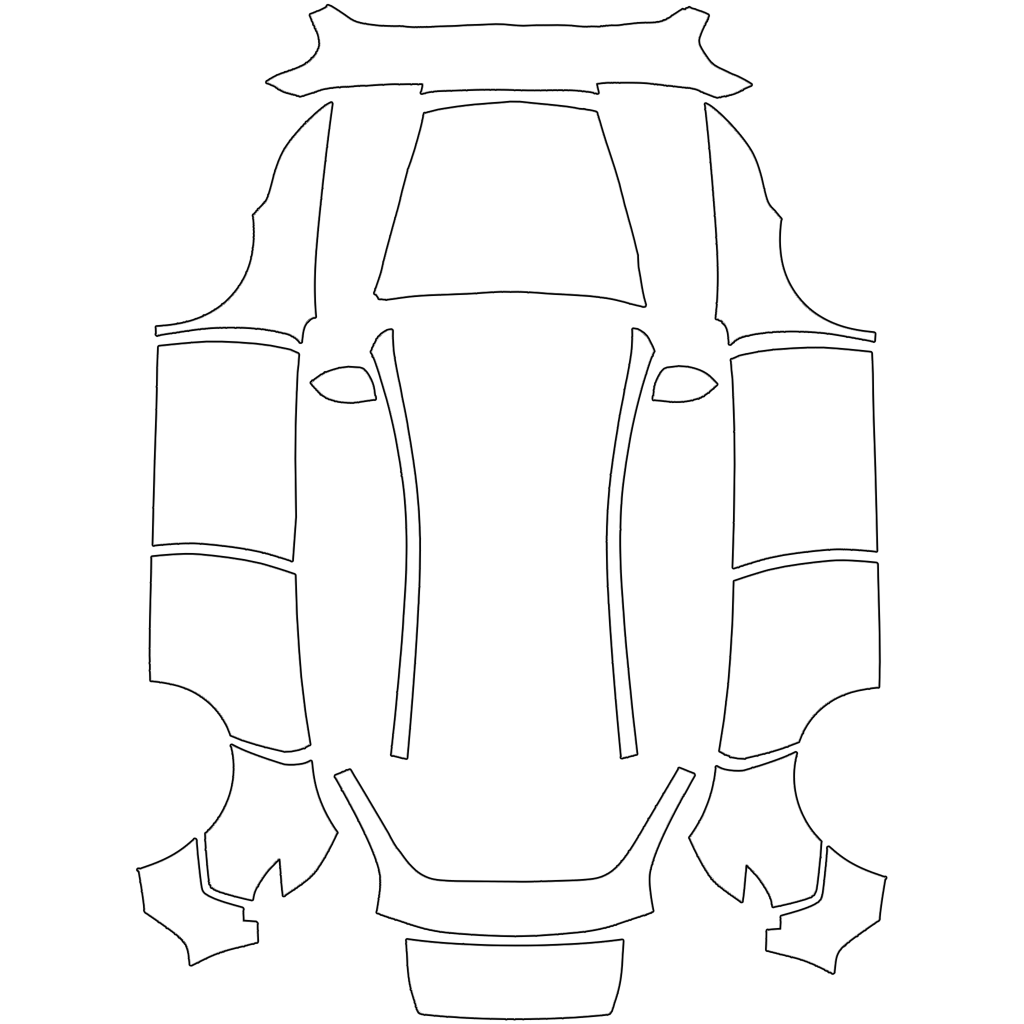
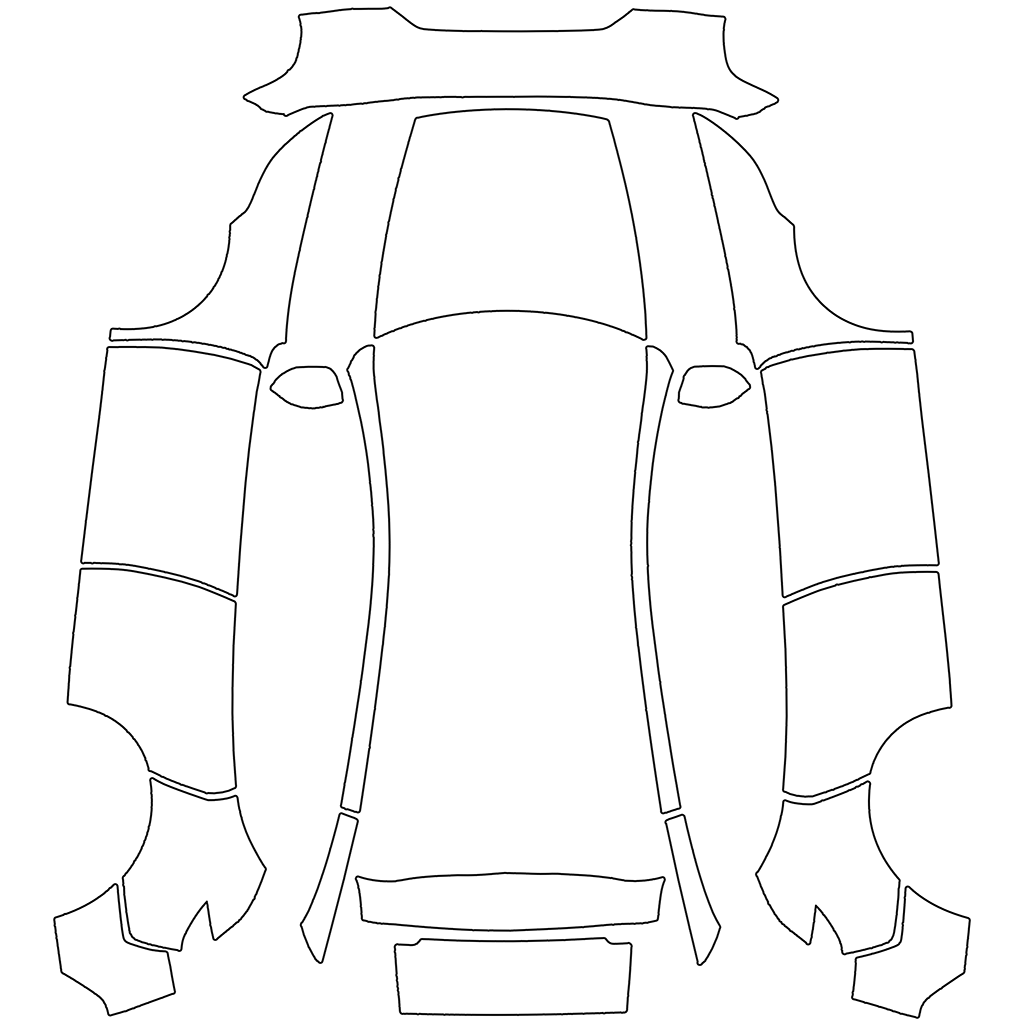
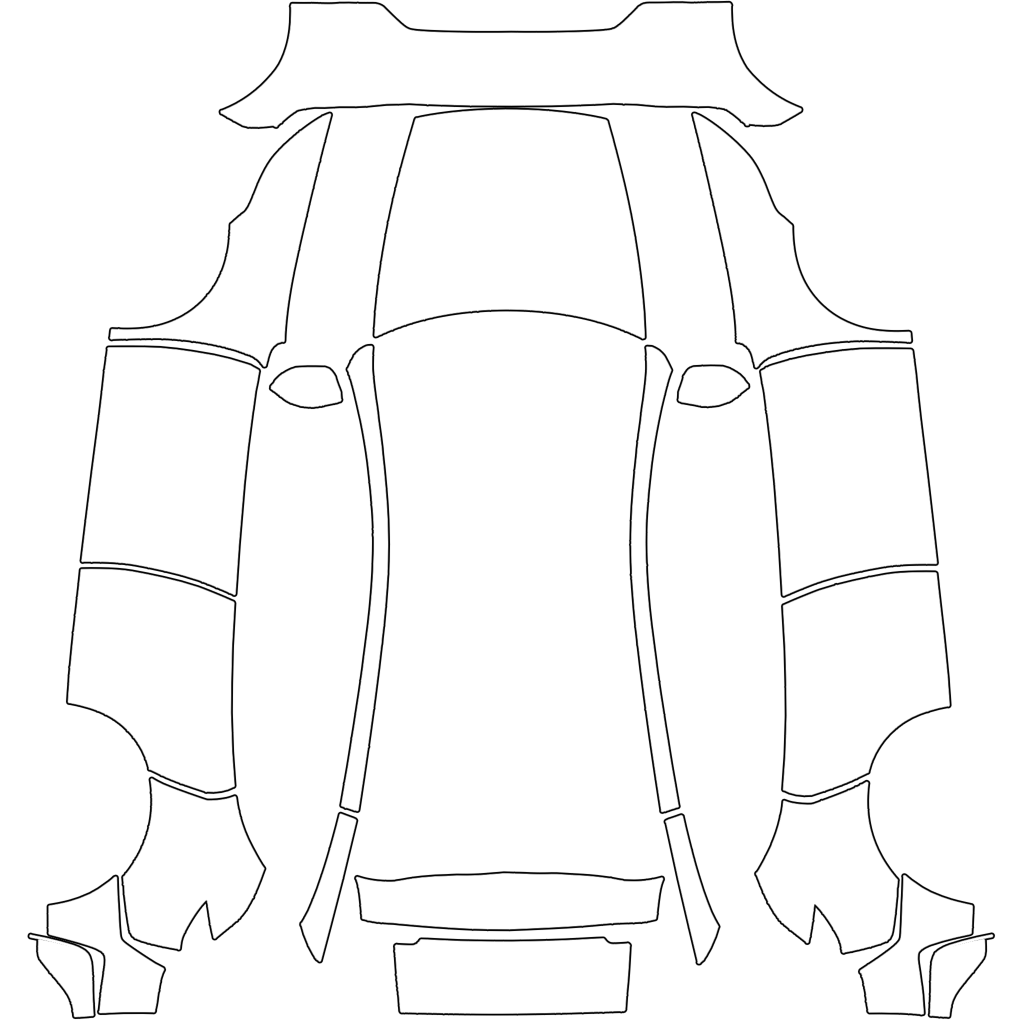
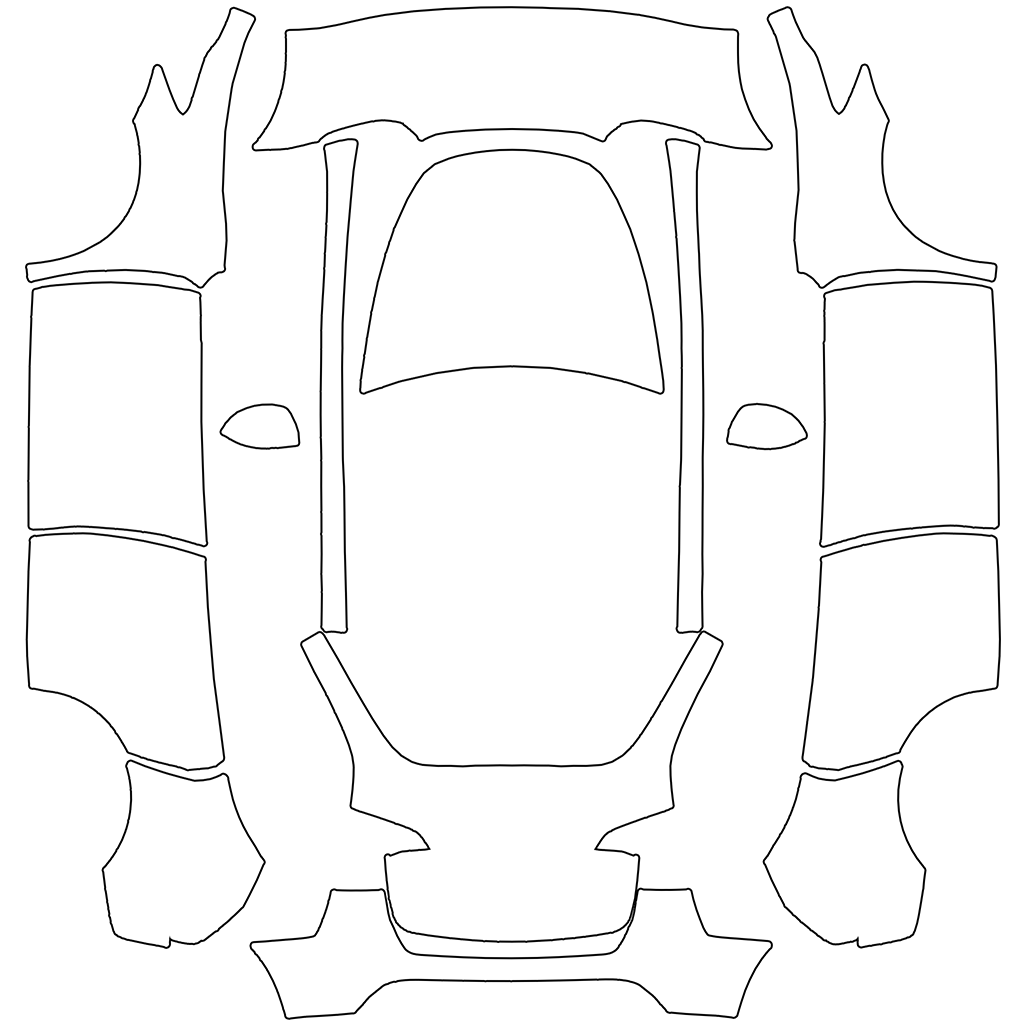
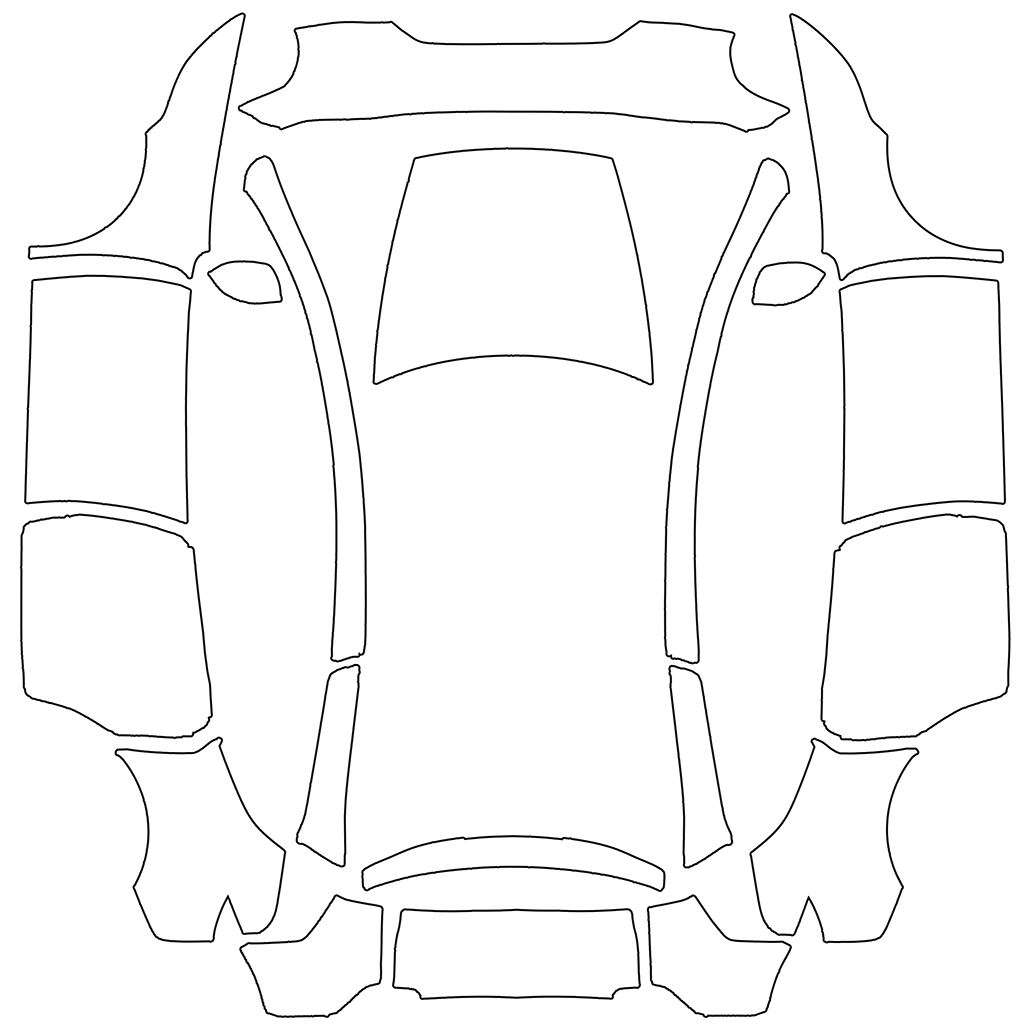
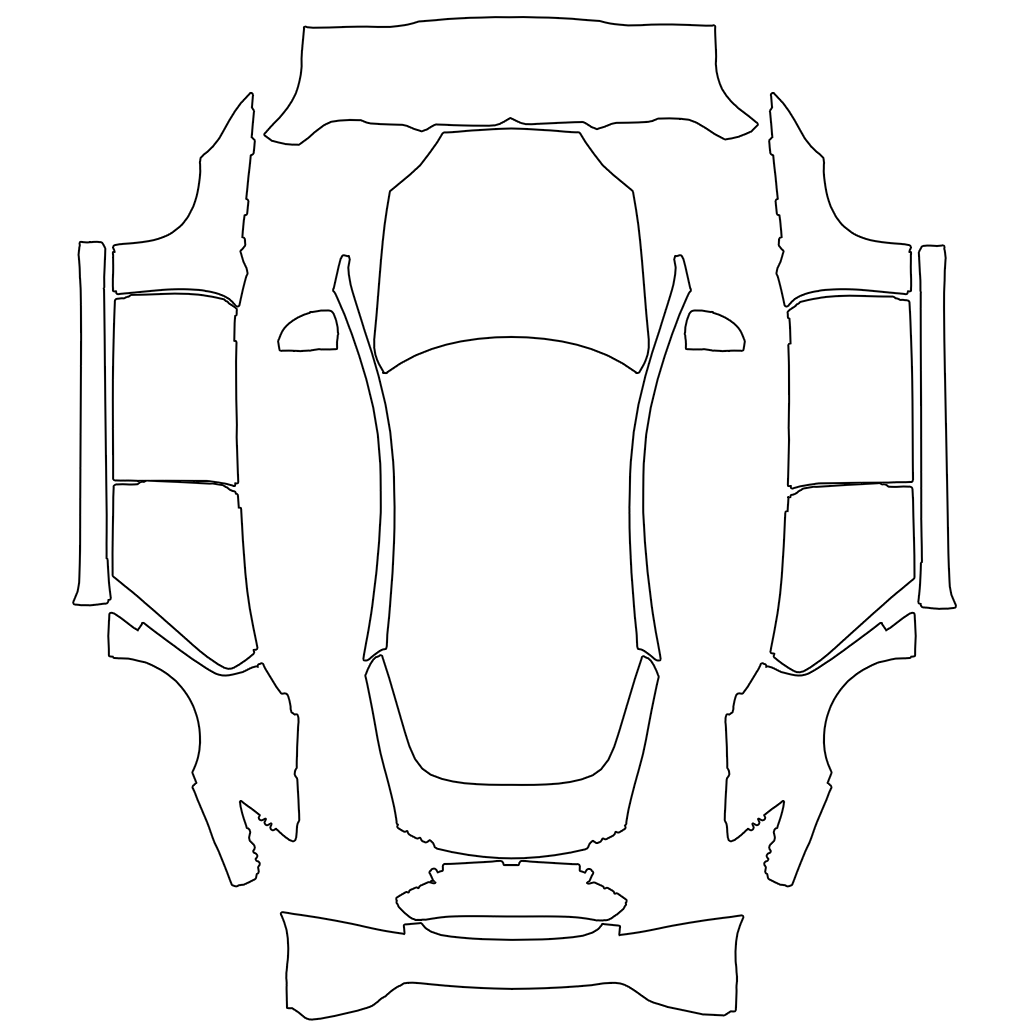
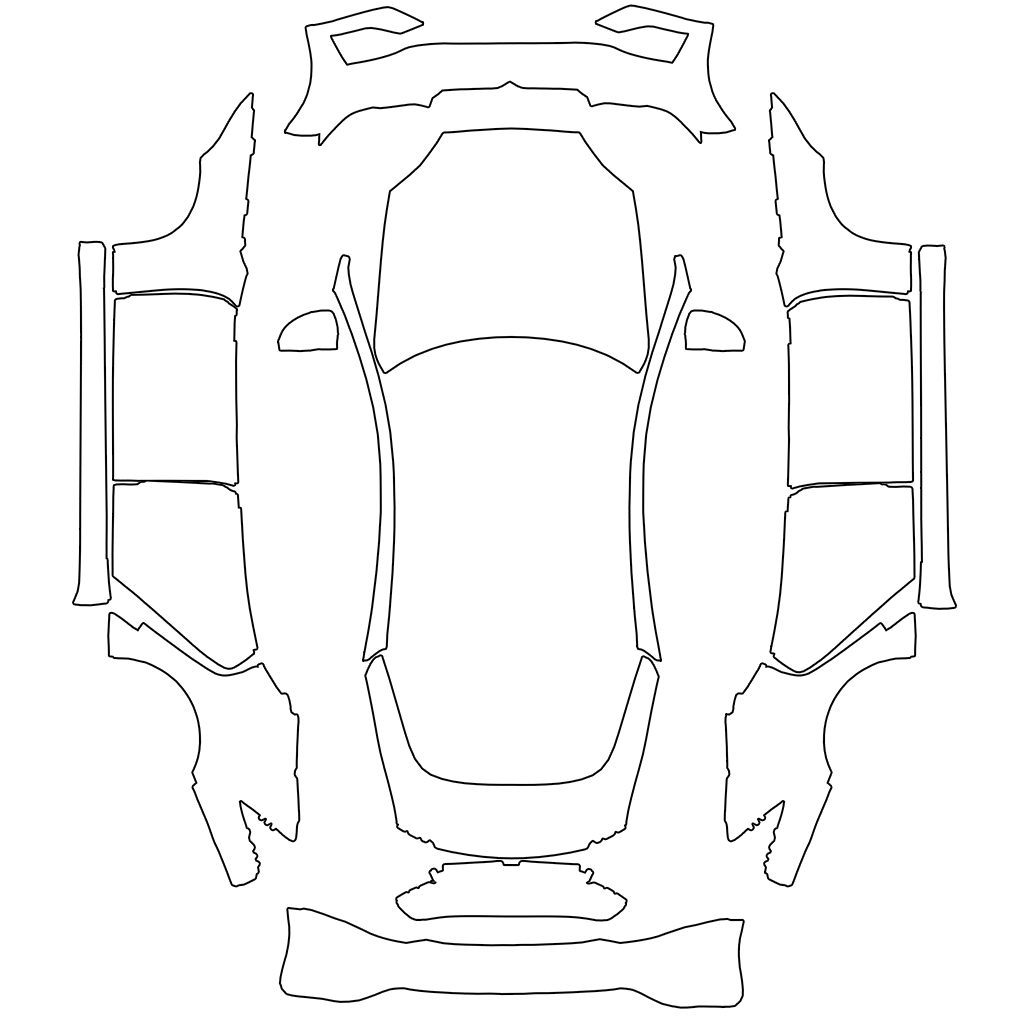
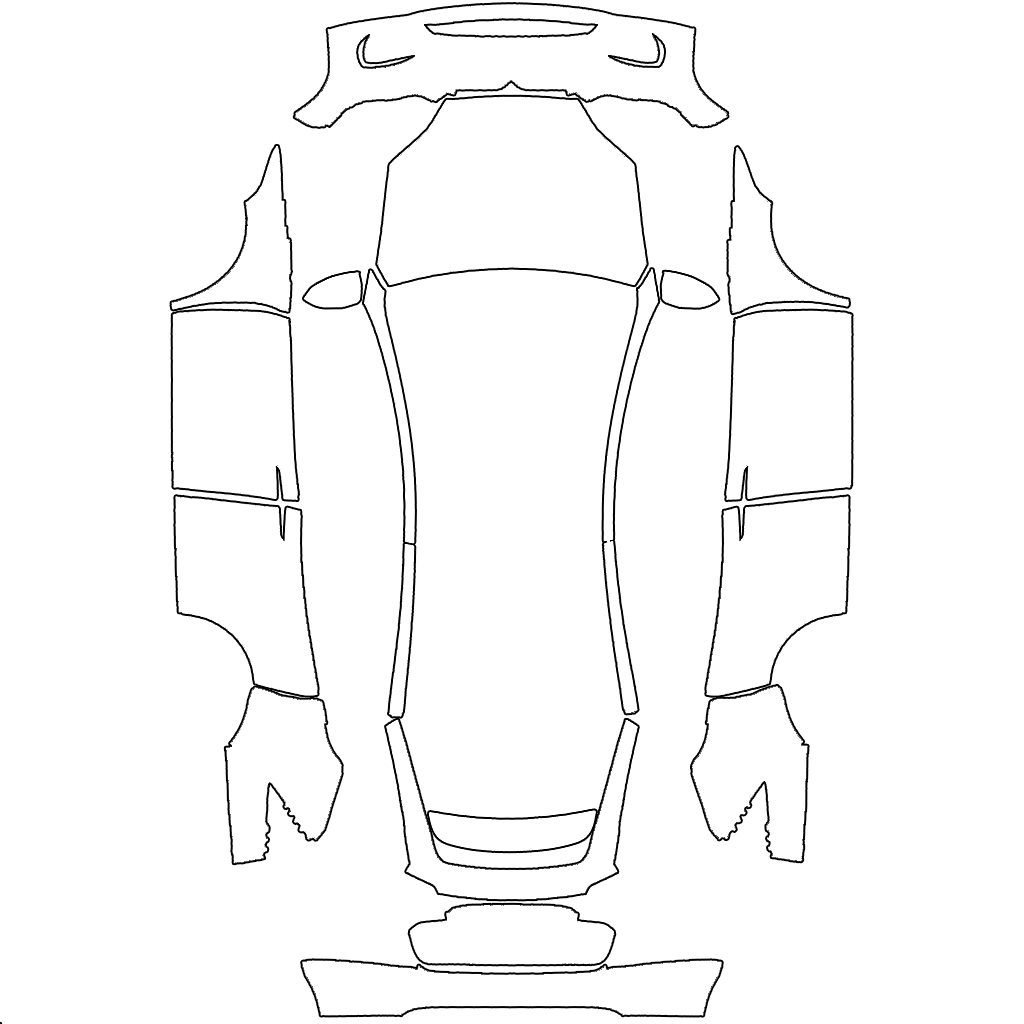
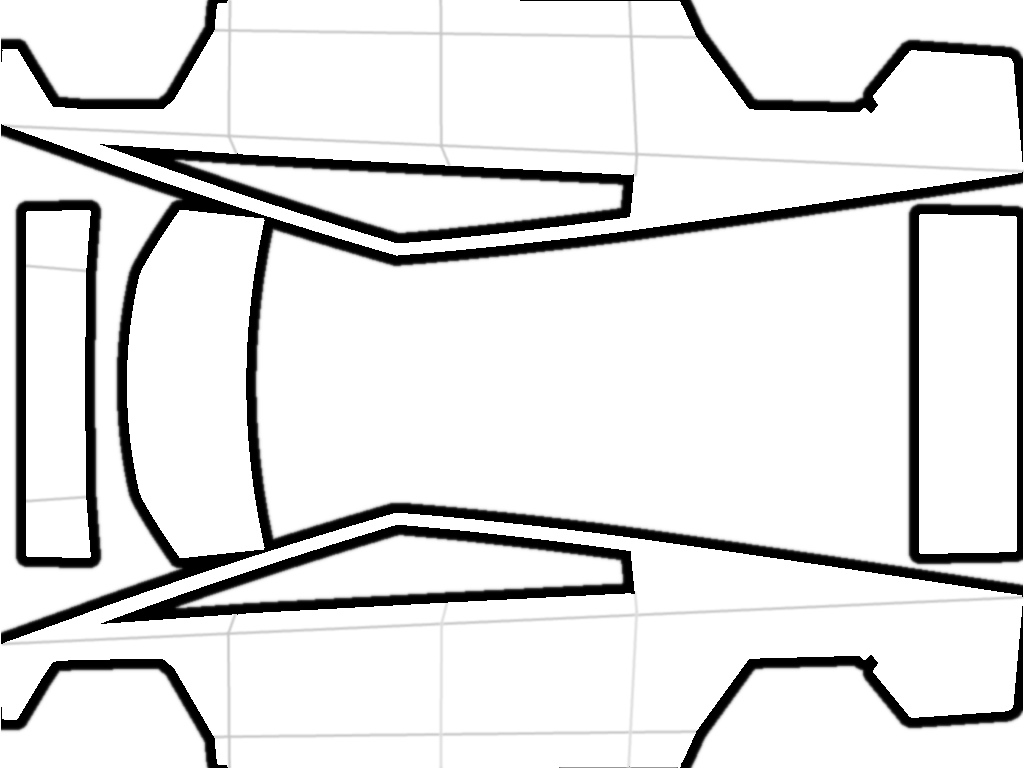
The templates are Tesla’s own, from Tesla’s custom wraps page on GitHub.
2. Which template is my car?
- Model 3 Highland or 2017–2023? The Highland, sold from 2024, has slimmer headlights, a smooth front bumper without fog lights and C-shaped tail lights.
- Model Y Juniper or 2020–2024? The Juniper, sold from 2025, has a full-width light bar across the front and the back.
- Juniper Standard, Premium or Performance? Their bumpers and trim differ, so each has its own template. Check the trim in the Tesla app under your car’s details.
Using the wrong template is the most common reason a wrap looks misaligned on the car.
3. How to use a template
The easy way: open the template in the TeslaSkins editor. You see your design on a 3D model of your car as you go, add photos straight onto a panel, and download a PNG that already meets Tesla’s rules.
The manual way:
- Download the template for your car and open it in an image editor that supports layers.
- Put your design on a layer under the template outlines, keeping each part inside its panel.
- Hide the template layer and export a PNG at 1024 × 1024 pixels, under 1 MB.
- Add it to your car with the Tesla app or a USB drive. See how to install Tesla wraps.
4. Size and file rules
| Format | PNG |
|---|---|
| Size | 512 × 512 to 1024 × 1024 pixels. The templates are 1024 × 1024 (Cybertruck 1024 × 768). |
| File size | No larger than 1 MB |
| File name | Up to 30 characters: letters, numbers, spaces, dashes and underscores |
5. Questions
Can I use a Model Y template on a Model Y Juniper?
No. The panels are different, so a wrap made on one won’t line up on the other. The same goes for the Model 3 Highland and the 2017–2023 Model 3.
Do I need Photoshop?
No. The TeslaSkins editor runs in your browser, on a phone or a computer, and is free to try.
Are there ready-made wraps on these templates?
Yes. Browse free Tesla wraps for Model 3 and Model Y, each previewed in 3D before you download. New to Paint Shop? Start with our Tesla Paint Shop guide.